Ọrọ Iṣaaju
This manual provides comprehensive instructions for the INPHIC Tri-Mode Wireless Mouse, Model B0FQCFSHPQ. It covers setup, operation, maintenance, and troubleshooting to ensure optimal performance and user experience. Please read this manual thoroughly before using the product.
Ọja Pariview
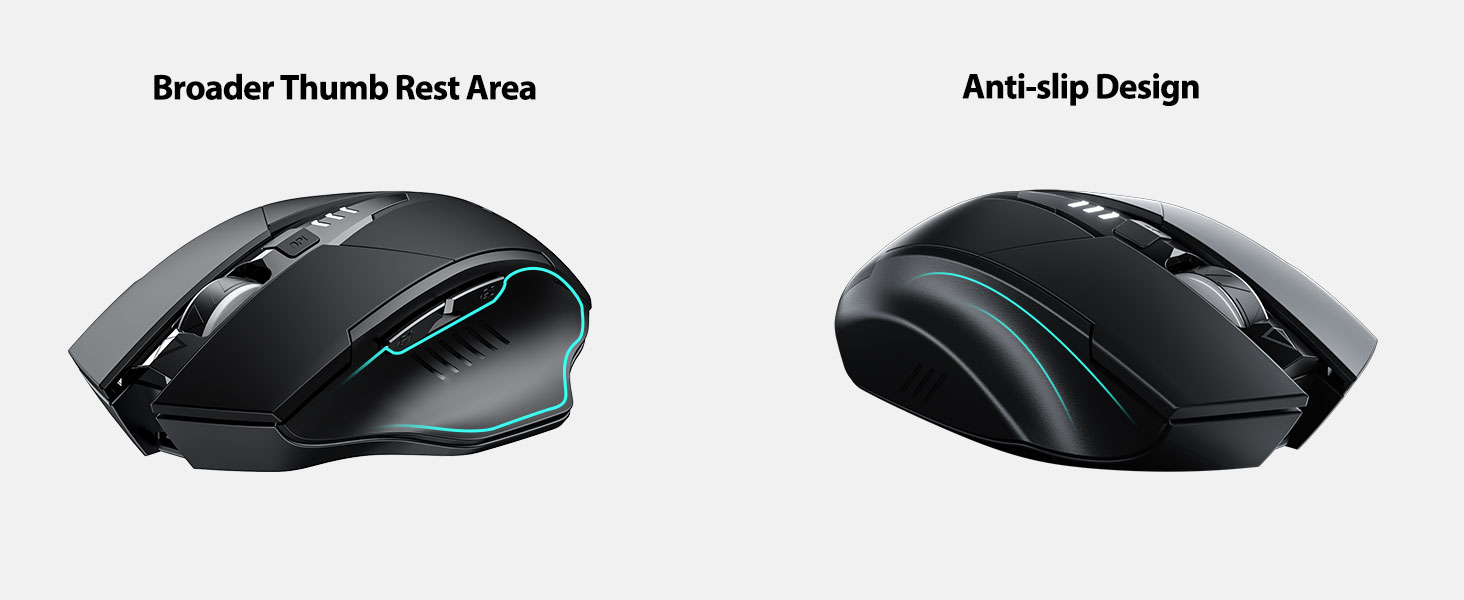
The INPHIC Tri-Mode Wireless Mouse offers versatile connectivity options (Bluetooth 5.0, Bluetooth 4.0, and 2.4G USB) and an ergonomic design for comfortable use. Key features include a visible battery indicator, silent click buttons, and adjustable DPI settings.
Package Awọn akoonu
- INPHIC Tri-Mode Wireless Mouse
- Olùgbà USB (tí a tọ́jú sínú àsin)
- USB-C Ngba agbara Cable
- Afowoyi Olumulo (iwe-ipamọ yii)
Asin irinše

- Osi/Ọtun Tẹ Awọn bọtini: Isẹ ipalọlọ.
- Yi lọ Kẹkẹ: Fun yi lọ inaro.
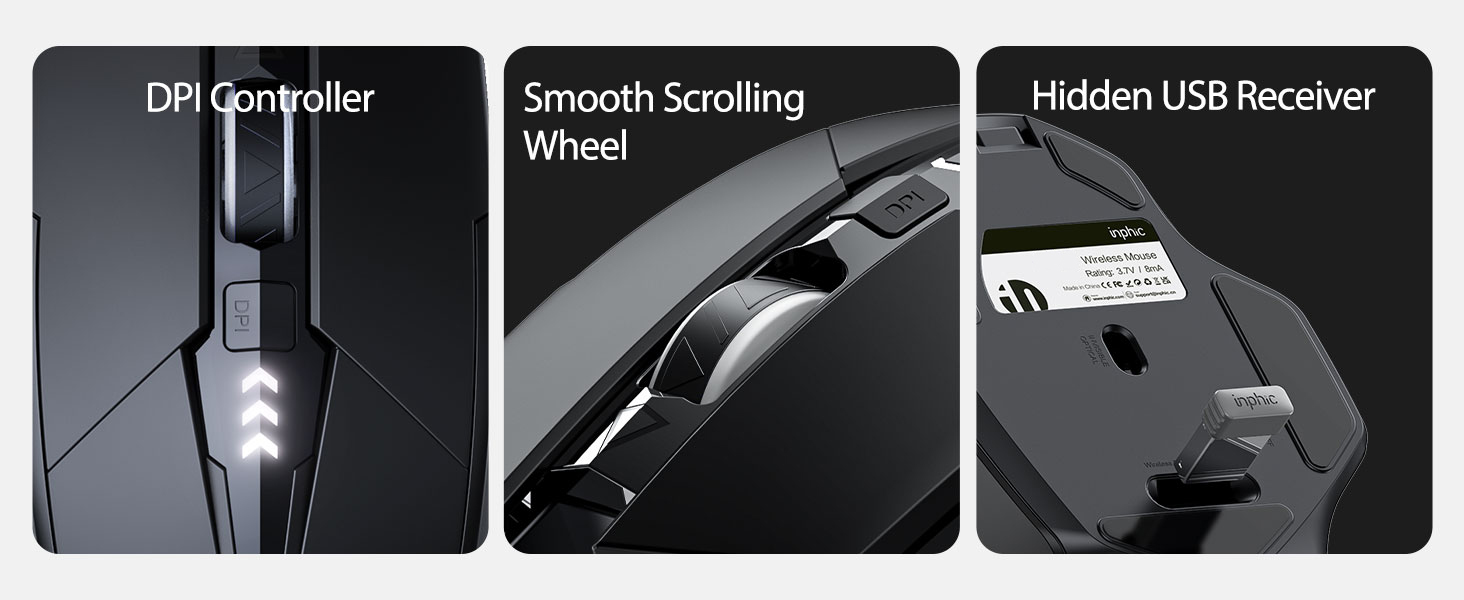
- Bọtini DPI: Adjusts cursor speed (800/1200/1600/2000/2400 DPI).
- Forward/Backward Buttons (Side): Fun lilọ kiri ni web aṣàwákiri tabi file oluwadi.
- Atọka Batiri: LED lights on top display remaining battery level.
- Connection Type Switch (Bottom): Toggles between 2.4G USB, Bluetooth 4.0, and Bluetooth 5.0 modes.
- Power Switch (Bottom): ON / PA yipada.
- USB Receiver Slot (Bottom): Stores the 2.4G USB receiver.
- Charging Port (Front): Ibudo USB-C fun gbigba agbara batiri inu.
Ṣeto
Gbigba agbara ni ibẹrẹ
Before first use, fully charge the mouse for approximately 1 hour. Connect the USB-C charging cable to the mouse's charging port and to a USB power source (e.g., computer USB port, USB wall adapter).

Nsopọ Asin
The mouse supports three connection modes: 2.4G USB, Bluetooth 4.0, and Bluetooth 5.0. Use the switch on the bottom of the mouse to select your desired mode.
2.4G USB Asopọ
- Locate the USB receiver stored in the slot on the bottom of the mouse.
- Pulọọgi olugba USB sinu ibudo USB ti o wa lori kọnputa rẹ.
- Switch the connection mode on the bottom of the mouse to "2.4G".
- Turn on the mouse using the power switch. The mouse should connect automatically.
Bluetooth Connection (BT 4.0 / BT 5.0)
- Switch the connection mode on the bottom of the mouse to "BT 4.0" or "BT 5.0".
- Tan-an Asin nipa lilo agbara yipada.
- On your device (laptop, tablet, etc.), open Bluetooth settings.
- Wa fun new Bluetooth devices. The mouse should appear as "INPHIC Mouse" or similar.
- Yan àsín tí o fẹ́ so pọ̀.
- Ni kete ti a ba so pọ, Asin ti šetan fun lilo.
Akiyesi: Bluetooth 5.0 is compatible with Windows 8/10 (not Windows 7 or XP), Android, and Mac OS systems. iOS systems (iPad and iPhone) require iOS 14 or later for Bluetooth 5.0 compatibility.
Awọn ilana Iṣiṣẹ
Titan / Paa
Use the ON/OFF switch located on the bottom of the mouse to power the device. To conserve battery, turn off the mouse when not in use for extended periods.
Awọn ọna Asopọ Yipada
The mode switch button on the bottom of the mouse allows you to cycle between 2.4G USB, Bluetooth 4.0, and Bluetooth 5.0 connections. This enables seamless switching between multiple paired devices.

Ṣatunṣe DPI (Iyara Kọsọ)
Press the DPI button located on the top of the mouse, below the scroll wheel, to cycle through 5 adjustable DPI levels: 800, 1200, 1600, 2000, and 2400. This allows you to customize cursor sensitivity to your preference.

Atọka batiri
The mouse features a visible battery indicator on its top surface. LED lights illuminate to show the remaining battery power, providing a clear visual cue for when recharging is needed.

Ipo Oorun Laifọwọyi
To conserve power, the mouse will automatically enter sleep mode after 5 minutes of inactivity. To wake the mouse, simply click any button.
Itoju
Ninu
Wipe the mouse with a soft, dry cloth. For stubborn dirt, a slightly damp A le lo aṣọ, kí ó má baà wọ inú àwọn ohun èlò inú. Yẹra fún àwọn kẹ́míkà líle tàbí àwọn ohun èlò ìfọmọ́ra.
Itọju Batiri
- Recharge the mouse when the battery indicator shows low power.
- Yago fun gbigba agbara si batiri ni kikun nigbagbogbo lati fa gigun aye rẹ.
- Tọju Asin ni itura, aye gbigbẹ nigbati o ko ba lo fun awọn akoko ti o gbooro sii.
Laasigbotitusita
| Isoro | Owun to le Fa | Ojutu |
|---|---|---|
| Asin ko dahun |
|
|
| Ìṣíṣẹ́ kọ́sọ̀ kò dúró déédéé tàbí ó lọ́ra |
|
|
| Awọn oran asopọ Bluetooth |
|
|
Awọn pato
| Ẹya ara ẹrọ | Ẹ̀kúnrẹ́rẹ́ |
|---|---|
| Awoṣe | B0FQCFSHPQ |
| Asopọmọra Technology | Bluetooth 5.0 / Bluetooth 4.0 / 2.4G USB Wireless |
| Awọn ipele DPI | 800 / 1200 / 1600 / 2000 / 2400 (Ṣatunṣe) |
| Awọn bọtini | 6 (Osi, otun, Yi lọ Kẹkẹ, DPI, Siwaju, Sẹhin) |
| Batiri Iru | Rechargeable (400mAh built-in) |
| Gbigba agbara Port | USB-C |
| Ijinna iṣẹ | Titi de awọn mita 10 (33 ẹsẹ) |
| Ọja Mefa | 4.7 x 3.1 x 0.04 inches |
| Iwọn Nkan | 3.36 iwon |
| Ibamu | Windows 7/8/10/XP, Vista, Mac OS. Bluetooth 5.0: Windows 8/10, Android, Mac OS, iOS 14+ (iPad/iPhone). 2.4G USB: Any USB-enabled device. |

Atilẹyin ọja ati Support
INPHIC products are designed for reliability and performance. For warranty information and technical support, please refer to the official INPHIC webojula tabi kan si wọn onibara iṣẹ taara.
- Olupese: INPHIC
- Olutaja: YingFeiTe (on Amazon)
- Ilana Pada: Refer to Amazon's current return policy.
- Olubasọrọ atilẹyin: Fun iranlọwọ, ṣabẹwo si INPHIC Store on Amazon tabi olupese ká osise webojula.
Alaye Aabo pataki
- Ma ṣe fi asin naa han si awọn iwọn otutu to gaju tabi ọriniinitutu.
- Yago fun sisọ tabi tẹriba asin si awọn ipa to lagbara.
- Do not attempt to disassemble or repair the mouse yourself. This may void the warranty.
- Jeki kuro ni arọwọto awọn ọmọde.
Fidio ọja
Apejuwe fidio: An official product video from INPHIC demonstrating the features and usage of the INPHIC Bluetooth Mouse. It shows the mouse being unboxed, its various components, connection methods, and ergonomic design in action.