Ọrọ Iṣaaju
The TP-Link M8550 AXE3600 5G Mobile Hotspot provides ultra-fast internet connectivity wherever you go. This portable Wi-Fi router is designed for travel, business trips, and can even serve as a reliable home network replacement. Featuring advanced 5G technology, it delivers download speeds up to 3.4 Gbps and supports up to 32 devices simultaneously. With tri-band Wi-Fi 6E, a nano SIM card slot, and a powerful 4680 mAh battery offering up to 14 hours of use, the M8550 ensures seamless connectivity. Its intuitive touchscreen interface and TP-Link Tether App make setup and management effortless.
Kini To wa
Package naa ni awọn nkan wọnyi:
- 1 x 5G AXE3600 Mobile Router M8550
- 1 x Agbara Adapter
- 1 x Okun USB-C
- 1 x 4680mAh Batiri
- 1 x Awọn ọna fifi sori Itọsọna
Ọja Pariview

Nọmba 1: The TP-Link M8550 5G Mobile Hotspot showcasing its cutting-edge 5G speeds, powerful tri-band Wi-Fi 6E, and unlocked compatibility with major carriers. It also highlights the external antenna interface, touchscreen, wired device connectivity, long battery life, and VPN security.

Nọmba 2: The M8550's informative touchscreen interface, displaying options for Home, Device Info, Power Saving, VPN, Wi-Fi Band, Network Mode, Data Roaming, and App Download.
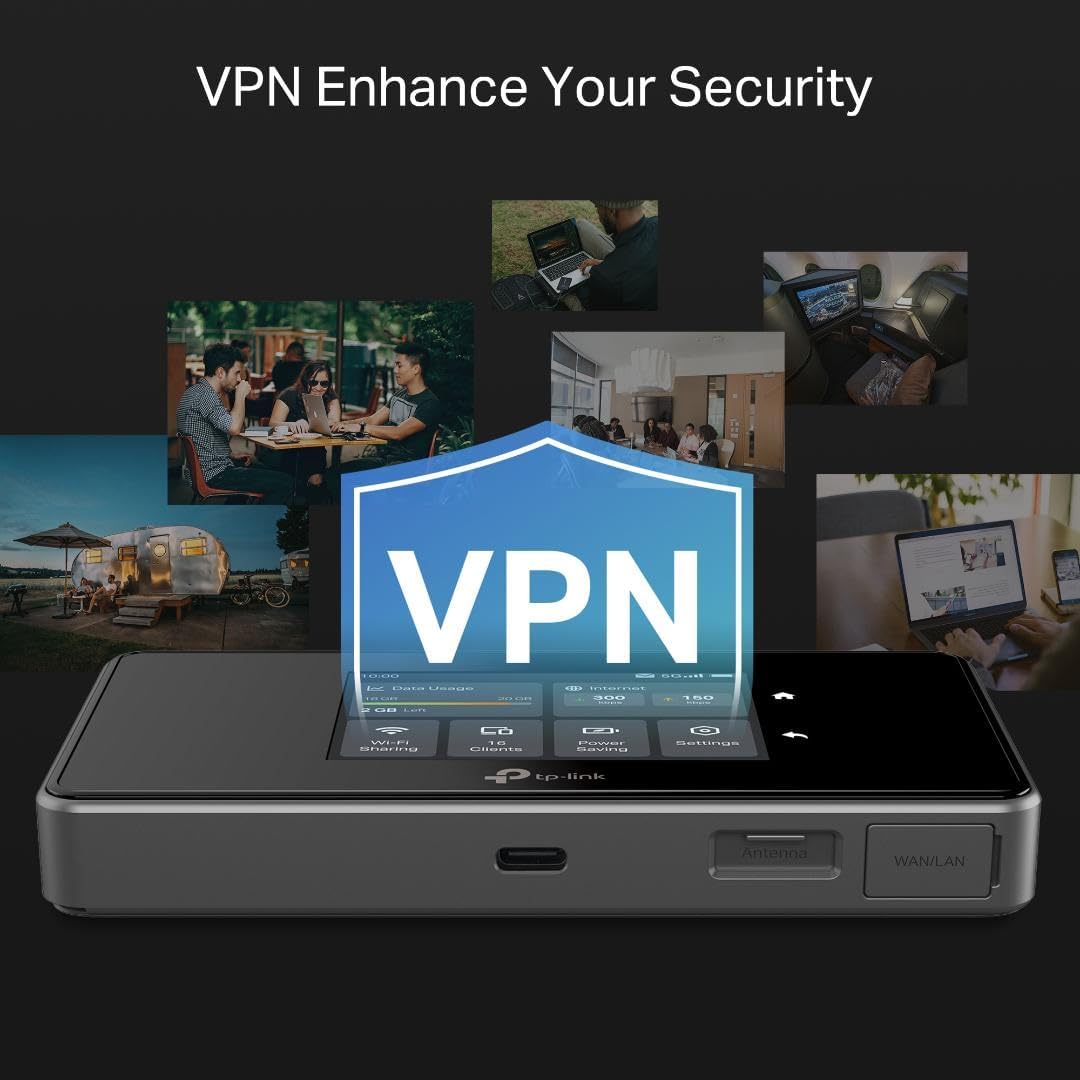
Nọmba 3: The M8550 emphasizing its VPN capabilities for enhanced security, showing various usage scenarios in different environments.
Key Awọn ẹya ara ẹrọ
- Ultra-Fast 5G Wi-Fi: Enjoy download speeds up to 3.4 Gbps and upload speeds up to 900 Mbps on 5G networks.
- Tri-Band AXE3600 Wi-Fi 6E: Delivers up to 2,880 Mbps (6 GHz), 2,880 Mbps (5 GHz), and 688 Mbps (2.4 GHz) for optimal performance.
- Unlocked & Certified: Supports AT&T, T-Mobile, and Verizon, with international roaming capabilities.
- Two Internet Access Modes: Cellular Mode for 5G hotspot use with a SIM card and Ethernet Mode for Wi-Fi router use with a wired connection.
- Batiri Igba pipẹ: 4680mAh rechargeable battery provides up to 14 hours of uninterrupted use.
- Sopọ Awọn ẹrọ pupọ: Ṣe atilẹyin fun awọn ẹrọ 32 nigbakanna.
- Informative Touchscreen: Intuitive interface for easy setup and management.
- VPN atilẹyin: Built-in WireGuard VPN for secure remote access.
- Ibudo USB-C: For rapid charging and data transfer.
- External Antenna Support: Dual TS-9 connectors for optional external antennas (sold separately) to boost signal.
Ṣeto
1. Insert SIM Card and Battery
- Remove the back cover of the M8550 device.
- Insert your activated Nano SIM card into the designated slot. Ensure the SIM card is without a PIN lock.
- Align the 4680mAh battery with the connectors and gently press it into place.
- Rọpo ideri ẹhin, ni idaniloju pe o tẹ ni aabo.
2. Agbara Lori Ẹrọ
- Press and hold the power button located on the device until the screen illuminates.
- Tẹ̀lé àwọn ìtọ́ni tó wà lójú ìbòjú fún ìṣètò àkọ́kọ́, títí kan yíyan èdè.
3. Download the TP-Link Tether App
- For easy management and customization, download the TP-Link Tether App from your device's app store (iOS or Android).
- Open the app and follow the instructions to connect to your M8550 hotspot.
Ṣiṣẹ ẹrọ naa
Fọwọkan Interface
The M8550 features an intuitive touchscreen display for direct control:
- Ile: View current status and data usage.
- Alaye ẹrọ: Access device details and network information.
- Nfi agbara pamọ: Adjust settings to optimize battery life.
- VPN: Manage VPN connections for secure browsing.
- Ẹgbẹ Wi-Fi: Select or manage Wi-Fi frequency bands (2.4 GHz, 5 GHz, 6 GHz).
- Ipo Nẹtiwọọki: Switch between Cellular Mode (5G/4G) and Ethernet Mode.
- Ririnkiri data: Enable or disable data roaming for international use.
- Igbasilẹ ohun elo: Access QR code to download the Tether App.
Ohun elo TP-Link Tether
The Tether App provides comprehensive control over your M8550 from your smartphone:
- View network status, connected clients, and data usage in real-time.
- Customize Wi-Fi settings, including network name (SSID) and password.
- Manage performance modes (Boost, Balance, Eco) to balance speed and battery life.
- Set connection priority for different internet sources (Ethernet, Hotspot, USB Internet).
- Configure parental controls, block websites, and set bedtime schedules for internet access.
- Access VPN client settings and manage USB drive file pinpin.
- Update device firmware for best performance.
Asopọmọra
Wi-Fi Awọn isopọ
The M8550 supports tri-band Wi-Fi 6E, allowing connection of up to 32 devices across 2.4 GHz, 5 GHz, and 6 GHz bands. Devices supporting Wi-Fi 7 can utilize Multi-Link Operation (MLO) for combined band speeds.
Ti firanṣẹ Awọn isopọ
The device includes a Gigabit WAN/LAN port for wired internet access or connecting wired devices. A USB-C port is available for rapid charging and data transfer, and a microSD card slot allows for wireless file pinpin.
Ita Antenna Support
Two TS-9 connectors are available for attaching external antennas (sold separately). These can boost reception and improve 5G signal strength in areas with low coverage.
Aabo ati Asiri
The TP-Link M8550 is designed with advanced security as a core requirement, adhering to the U.S. Cybersecurity and Infrastructure Security Agency’s (CISA) Secure-by-Design pledge.
- VPN ti a ṣe sinu: Utilize WireGuard VPN to encrypt all traffic, providing secure access to corporate networks without additional software.
- Idaabobo nẹtiwọki: Access security features via the Tether App, including Security Scan, IoT Device Identification, Guest Network, and Wi-Fi Access Control.
Awọn pato
| Ẹya ara ẹrọ | Ẹ̀kúnrẹ́rẹ́ |
|---|---|
| Ọja Mefa | 5.31 x 0.81 x 2.9 inches |
| Iwọn Nkan | 6.7 iwon |
| Nọmba Awoṣe Nkan | M8550 |
| Awọn batiri | Awọn batiri Lithium Ion 1 nilo (pẹlu) |
| Brand | TP-Link |
| Orukọ awoṣe | 5G Mobile WiFi |
| Pataki Awọn ẹya ara ẹrọ | 1-Tap Setup, Access Point Mode, Internet Security, MU-MIMO, Touch Screen |
| Igbohunsafẹfẹ Band Class | Tri-Band (2.4 GHz, 5 GHz, 6 GHz) |
| Alailowaya Ibaraẹnisọrọ Alailowaya | 802.11ax (Wi-Fi 6E) |
| Awọn ẹrọ ibaramu | Gaming Console, Laptop, Personal Computer, Smartphone, Tablet |
| Niyanju Lilo | Iṣowo, Irin-ajo |
| Asopọmọra Technology | 5G, Ethernet, Wi-Fi |
| Àwọ̀ | Dudu |
Laasigbotitusita
- Ko si Asopọ Ayelujara: Ensure your SIM card is active and has a valid data plan. Check signal strength on the device screen. Try restarting the device.
- Awọn iyara ti o lọra: Performance can vary due to network configuration, signal strength, distance from the device, and obstacles. Try adjusting the performance mode in the Tether App.
- Ẹrọ Ko Sopọ: Verify Wi-Fi password. Ensure the device is within range. Check for firmware updates via the Tether App.
- SIM Card Locked: If your SIM card is locked, consult the quick installation guide for unlocking instructions.
Atilẹyin
For further assistance, please contact TP-Link Customer Support:
- Foonu: 1-866-255-8139 (24/7 free support)
- Webojula: support.tp-link.com/us
- Imeeli: support.usa@tp-link.com
Ofin AlAIgBA
The actual mobile broadband speeds vary due to network configuration, signal strength, subscription terms, etc. Maximum wireless signal rates are the physical rates derived from IEEE Standard 802.11 specifications. Actual wireless data throughput and connected devices vary due to network conditions, client limits, environment, etc. Actual battery time may vary due to different user environments. SIM card & SD card sold separately. This device requires an activated SIM card without a PIN lock. If the SIM card is locked, please consult the quick installation guide for unlocking instructions. Use of Wi-Fi 6 (802.11ax), Wi-Fi 6E and its features require clients to also support the corresponding features. External antenna sold separately.
Official ọja Video
Apejuwe fidio: This video provides an introduction to the TP-Link WR3002X Travel Router, highlighting its portable design and key features. While the video title mentions WR3002X, the content is relevant to the general functionality and benefits of TP-Link travel routers, including aspects like power options, port types, and network creation, which are applicable to the M8550.


