1. Ifihan
This user manual provides comprehensive instructions for the installation, operation, and maintenance of your NIVIAN NVS-MINICURTAIN-WR-KIT WiFi Roller Shutter Controller. This device is designed to integrate motorized blinds and awnings into your smart home system, offering control via the Tuya Smart app, an included RF remote, and voice assistants like Amazon Alexa and Google Assistant. Please read this manual thoroughly before use to ensure proper functionality and safety.
2. Alaye Aabo
- Fifi sori ẹrọ itanna: Installation should only be performed by a qualified electrician or a person with sufficient knowledge of electrical systems. Ensure the main power supply is disconnected before installation.
- Voltage ibamu: Daju pe awọn ipese agbara voltage matches the device's specifications (100-240V AC, 50/60Hz).
- Idaabobo Apọju: Do not exceed the maximum current rating of 3A. The device includes overvoltage Idaabobo.
- Aabo Ohun elo: The device is constructed with flame-retardant materials for enhanced safety.
- Ayika: Ma ṣe fi ẹrọ naa han si ọrinrin, awọn iwọn otutu to gaju, tabi awọn agbegbe ibajẹ.
- Awọn ọmọde ati awọn ohun ọsin: Jeki ẹrọ naa ati awọn paati rẹ kuro ni arọwọto awọn ọmọde ati ohun ọsin.
3. Package Awọn akoonu
Package yẹ ki o ni awọn nkan wọnyi:
- NIVIAN NVS-MINICURTAIN-WR-KIT WiFi Roller Shutter Controller
- RF Isakoṣo latọna jijin
- Afowoyi Olumulo (iwe-ipamọ yii)
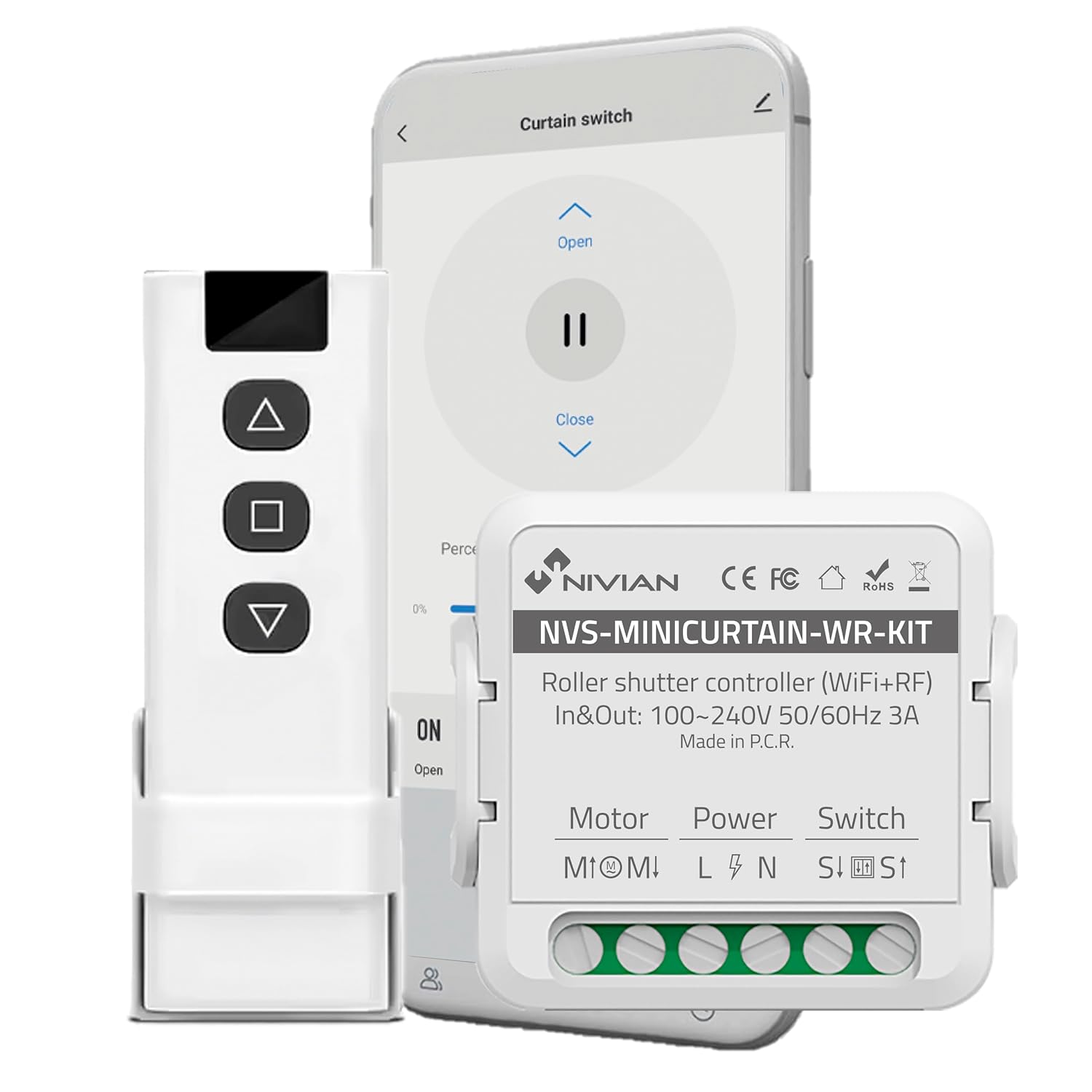
Image 3.1: Contents of the NIVIAN NVS-MINICURTAIN-WR-KIT package, showing the smart controller, RF remote, and a smartphone interface.
4. Ọja Ipariview
The NIVIAN NVS-MINICURTAIN-WR-KIT is a compact smart switch designed to control motorized roller shutters and awnings. It integrates WiFi connectivity for app control and RF for the included remote. Key features include:
- Asopọmọra WiFi: Control via Tuya Smart app from anywhere.
- Iṣakoso latọna jijin RF: Convenient local control with the included RF remote.
- Iṣakoso ohun: Ni ibamu pẹlu Amazon Alexa ati Google Iranlọwọ.
- Ṣíṣètò àti Àkókò: Automate opening and closing times.
- Àwọn Ìṣẹ̀lẹ̀ Ọlọ́gbọ́n: Create custom automation rules based on conditions.
- Abojuto Agbara: Track power consumption of connected motors.
- Apẹrẹ Iwapọ: Easily integrates behind existing wall switches.

Aworan 4.1: Pariview of the controller's features and compatibility.
5. Eto ati fifi sori
5.1 Wiring aworan atọka
Before proceeding with installation, ensure the main power supply to the circuit is turned OFF at the breaker. This device is designed to be installed behind an existing manual wall switch for motorized blinds/awnings. The controller has terminals for Motor (M1, M2), Power (L, N), and Switch (S1, S2).

Aworan 5.1: Example of the controller installed with an existing wall switch.
- Ge Agbara: Turn off the main power supply to the circuit at your home's electrical panel.
- Wíwọlé sí Wáyà: Remove the existing wall switch plate and switch to access the wiring.
- So awọn okun mọto pọ: Connect the motor's UP and DOWN wires to the M1 and M2 terminals on the controller.
- Connect Power Wires: Connect the Live (L) and Neutral (N) wires from your power supply to the L and N terminals on the controller.
- Connect Switch Wires: Connect the wires from your existing manual wall switch to the S1 and S2 terminals on the controller.
- Ẹrọ to ni aabo: Carefully place the controller inside the wall box, ensuring no wires are pinched. Reinstall the wall switch and plate.
- Pada Agbara pada: Tan ipese agbara akọkọ pada ON.
5.2 App Pairing (Tuya Smart)
- Ṣe igbasilẹ Ohun elo: Ṣe ìgbàsókè àpù "Tuya Smart" tàbí "Smart Life" láti inú ìtajà àpù fóònù alágbèéká rẹ (iOS/Android).
- Forukọsilẹ/Wọle: Ṣii app naa ki o forukọsilẹ fun akọọlẹ tuntun tabi wọle ti o ba ti ni ọkan tẹlẹ.
- Tẹ Ipo Sisopọ: Power on the controller. The indicator light on the controller should blink rapidly (usually 2 times per second) to indicate it's in pairing mode. If not, press and hold the reset button (or the manual switch for 5-10 seconds) until it blinks rapidly.
- Fi ẹrọ kun: In the Tuya Smart app, tap the "+" icon in the top right corner to add a device. Select "Curtain Switch" or "Curtain Module" from the device list.
- Sopọ si WiFi: Follow the on-screen instructions to connect the device to your 2.4GHz WiFi network. Enter your WiFi password.
- Ipari: Once connected, the device will appear in your app. You can rename it for easier identification.
5.3 RF Remote Pairing
The included RF remote control is pre-paired with the controller. If you need to re-pair or pair additional RF remotes:
- Tẹ Ipo Sisopọ: Briefly press the pairing button on the controller (or press the manual switch 4 times quickly). The indicator light will blink slowly.
- Tẹ Bọtini Latọna jijin: Within 5 seconds, press any button on the RF remote you wish to pair.
- Ìmúdájú: The controller's indicator light will stop blinking, confirming successful pairing.
6. Awọn ilana Iṣiṣẹ
The NIVIAN controller offers multiple ways to operate your motorized blinds or awnings:

Image 6.1: Multiple control modes for the roller shutter controller.
6.1 Tuya Smart App Control
- Open the Tuya Smart app and select your roller shutter device.
- You will see options to "Open," "Close," or "Pause" the blinds.
- Ogorun kantage slider allows you to set the opening/closing position precisely.

Image 6.2: Controlling roller shutters via the Tuya Smart app.
6.2 RF Isakoṣo latọna jijin
- Use the "Up" button to open the blinds.
- Use the "Down" button to close the blinds.
- Use the "Stop/Pause" button to halt the blinds at any desired position.
6.3 Iṣakoso ohun (Alexa/ Oluranlọwọ Google)
To enable voice control, link your Tuya Smart account to Amazon Alexa or Google Assistant through their respective apps. Once linked, you can use commands such as:
- "Alexa, open [Device Name] blinds."
- "Hey Google, close [Device Name] blinds."
- "Alexa, set [Device Name] blinds to 50%."
6.4 Manual Wall Switch Control
The existing manual wall switch connected to the controller will continue to function normally, allowing for traditional physical control of your blinds.
7. Smart Awọn ẹya ara ẹrọ ati Automation
7.1 Iṣeto ati Aago
Within the Tuya Smart app, you can set schedules for your blinds to open or close at specific times on chosen days. This is ideal for daily routines or simulating presence when away.
7.2 Smart Scenarios
Create custom automation rules (scenarios) in the Tuya Smart app. These can be triggered by various conditions:
- Àwọn Àyípadà Ojúọjọ́: Automatically close blinds if the weather forecast predicts strong sun or rain.
- Location Changes: Open blinds when you arrive home.
- Àkókò Ọjọ́: Adjust blinds based on sunrise/sunset.
- Ipo Ẹrọ: Integrate with other smart devices (e.g., close blinds when a smart light turns on).

Image 7.1: Creating smart home automation scenarios.

Image 7.2: Simulating presence by raising and lowering blinds remotely.
7.3 Agbara Abojuto
The controller provides energy consumption reports and graphs within the Tuya Smart app, allowing you to monitor and manage the power usage of your connected motors.
8. Itọju
- Ninu: Lo aṣọ gbígbẹ tí ó rọ láti nu ẹ̀rọ náà. Má ṣe lo àwọn kẹ́míkà líle tàbí àwọn ohun ìfọmọ́ tí ó ń pa ara.
- Awọn imudojuiwọn famuwia: Periodically check the Tuya Smart app for available firmware updates to ensure optimal performance and security.
- Battery Replacement (RF Remote): If the RF remote's range or responsiveness decreases, replace its battery (type usually CR2032, check remote for specifics).
9. Laasigbotitusita
| Isoro | Owun to le Fa | Ojutu |
|---|---|---|
| Ẹ̀rọ kò sopọ̀ mọ́ app náà. | Incorrect WiFi password, 5GHz WiFi network, device not in pairing mode. | Ensure correct 2.4GHz WiFi password. Confirm device indicator is blinking rapidly. Reset device and try pairing again. |
| Blinds not responding to app/remote. | No power to controller, incorrect wiring, RF remote battery low, WiFi disconnected. | Check power supply. Verify wiring connections. Replace RF remote battery. Check WiFi connection in app. |
| Blinds move in the wrong direction. | Motor wires (M1/M2) are reversed. | Disconnect power and swap the M1 and M2 motor wires. |
| Iṣakoso ohun ko ṣiṣẹ. | Tuya account not linked to Alexa/Google, incorrect device name, internet connectivity issues. | Ensure Tuya account is linked. Use the exact device name. Check internet connection. |
10. Awọn pato
| Nọmba awoṣe | NVS-MINICURTAIN-WR-KIT |
| Input/Ojade Voltage | 100-240V AC, 50/60Hz |
| Ti won won Lọwọlọwọ | 3A |
| Alailowaya Asopọmọra | WiFi 2.4GHz, RF |
| Ipo Iṣiṣẹ | ON-PA-ON |
| Olubasọrọ Iru | Ṣii ni deede |
| Asopọmọra Iru | Pulọọgi sinu |
| Yipada Iru | Titari Bọtini |
| Ebute Iru | Dabaru |
| Ohun elo | Acrylonitrile Butadiene Styrene (ABS) |
| Awọn iwọn (L x W x H) | 40 x 40 x 20 mm |
| Iwọn | 70 g |
| Ipilẹṣẹ | China |
11. Atilẹyin ọja ati Support
NIVIAN products are designed for reliability and performance. For warranty information, technical support, or to access additional resources, please visit the official NIVIAN webojula tabi olubasọrọ onibara iṣẹ.
For tutorials and tips, visit NIVIAN on Instagàgbo or YouTube.


