1. Ọja Ipariview
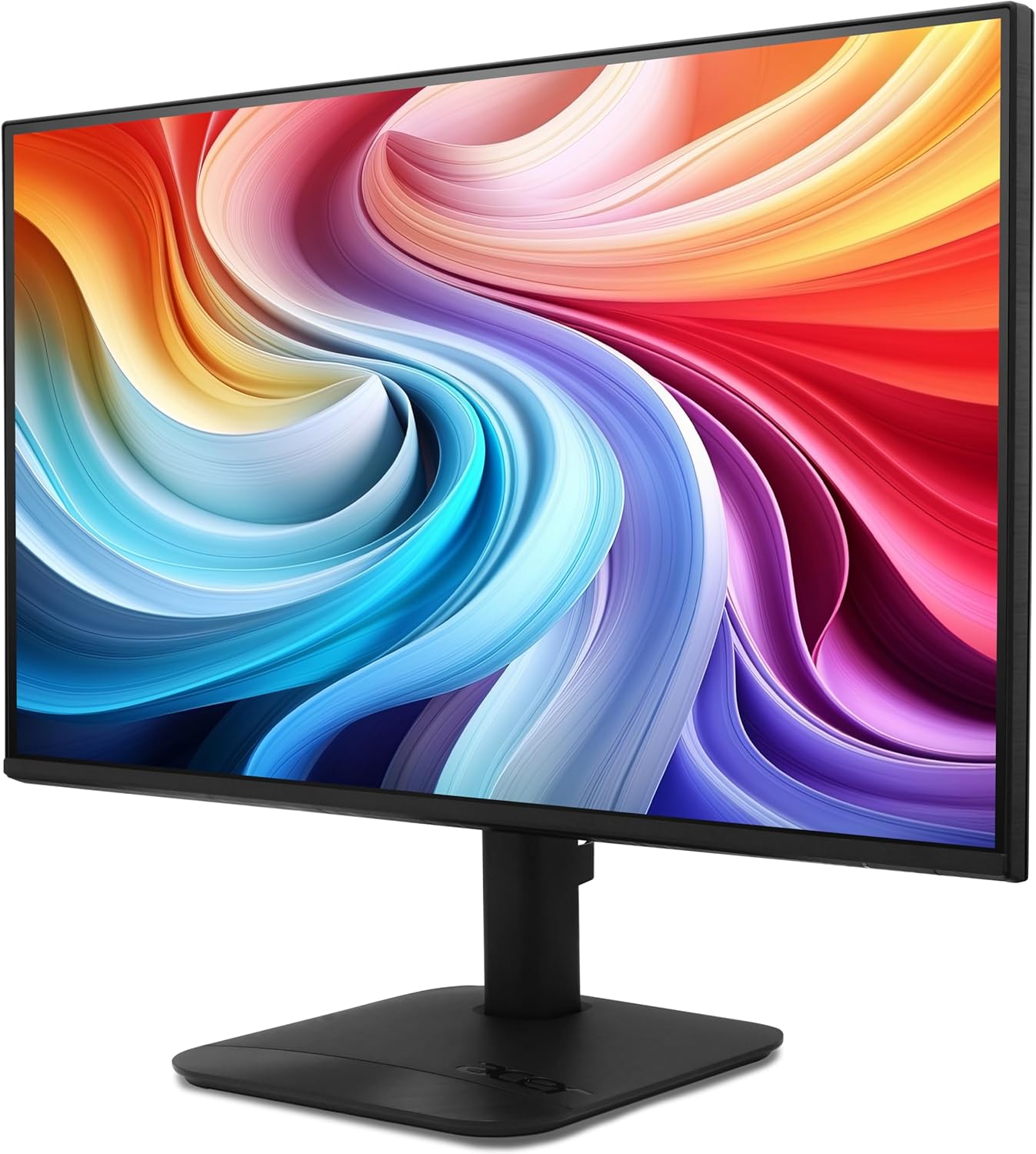
The Acer KB272 P6bi is a 27-inch IPS Full HD (1920 x 1080) monitor designed for both gaming and office use. It features a Zero-Frame design, AMD FreeSync Technology, up to a 144Hz refresh rate, and a 1ms Visual Response Boost (VRB) for smooth visuals. The IPS panel ensures accurate colors and wide viewing awọn igun.

olusin 1: Iwaju view of the Acer KB272 P6bi monitor.
Awọn ẹya pataki:
- Vibrant Full HD Display: Experience crisp, true-to-life colors with 1920x1080 resolution and a 16:9 aspect ratio.
- Imọ-ẹrọ AMD FreeSync: Eliminates screen tearing and stuttering by synchronizing the monitor's refresh rate with your graphics card's frame rate.
- Akoko Idahun kiakia: A fast 1ms (VRB) response time ensures smooth rendering of fast-moving action without smearing or ghosting.
- Oṣuwọn isọdọtun giga: Up to 144Hz refresh rate provides ultra-smooth 2D motion scenes.
- Apẹrẹ ZeroFrame: A near bezel-less design maximizes screen real estate and allows for seamless multi-monitor setups.
- Imọ ọna ẹrọ IPS: Delivers accurate colors and consistent image quality across wide viewing angles of up to 178 degrees.
2. Ohun ti o wa ninu Apoti
Daju pe gbogbo awọn paati wa ṣaaju ki o to tẹsiwaju pẹlu iṣeto.
- Acer KB272 P6bi Monitor Display
- Iduro Iduro (Ipilẹ ati Ọrun)
- Okun agbara
- Okun HDMI
3. Awọn ilana iṣeto
3.1 Nto Iduro Atẹle
- Farabalẹ gbe atẹle naa si isalẹ lori rirọ, dada ti o mọ lati ṣe idiwọ awọn itọ.
- Attach the stand neck to the back of the monitor until it clicks into place or is secured with screws (refer to the quick start guide for specific model details).
- Attach the stand base to the stand neck, ensuring it is firmly secured.
olusin 2: Ẹyìn view ti atẹle pẹlu agbegbe asomọ iduro.
3.2 Nsopọ Atẹle
- Connect one end of the provided HDMI cable to the HDMI port on your computer or graphics card.
- Connect the other end of the HDMI cable to the HDMI port on the Acer KB272 P6bi monitor. Alternatively, use a VGA cable if your system requires it.
- So okun agbara pọ si titẹ agbara atẹle ati lẹhinna si iṣan agbara kan.
- Tẹ bọtini agbara lori atẹle lati tan-an.

Figure 3: Monitor connectivity ports (HDMI and VGA).
4. Ṣiṣẹ Atẹle
4.1 Agbara Tan / Pa
Press the power button, typically located on the back or bottom right of the monitor, to turn the display on or off.
4.2 Lori-iboju Ifihan (OSD) Akojọ aṣyn
The monitor features a joystick-style button, often integrated with the power button, for navigating the OSD menu. Press the button once to bring up the options, then tilt it in one of four directions to select and adjust settings such as brightness, contrast, color temperature, and input source.
4.3 Siṣàtúnṣe Ifihan Eto
- Imọlẹ/Itọtọ: Ṣàtúnṣe àwọn ètò yìí láti bá ọ mu viewayika ati awọn ayanfẹ.
- Eto awọ: Modify color temperature or select preset modes for optimal visual experience.
- Orisun igbewọle: Manually select between HDMI and VGA inputs if auto-detection does not work.
- Oṣuwọn isọdọtun: Ensure your computer's display settings are configured to utilize the monitor's maximum refresh rate (up to 144Hz) for the smoothest experience.
- AMD FreeSync: Enable FreeSync in both the monitor's OSD menu and your graphics card's control panel for tear-free gaming.

Figure 4: Visual representation of AMD FreeSync technology.
5. Itọju
5.1 Ninu Atẹle
- Máa pa monitor náà nígbà gbogbo kí o sì yọ okùn agbára kúrò kí o tó sọ ọ́ di mímọ́.
- Lo asọ rirọ, ti ko ni lint ni sere dampened pẹlu omi tabi ìwọnba, ti kii-abrasive iboju regede.
- Nu iboju naa pẹ̀lẹ́pẹ̀lẹ́. Yẹra fun titẹ pupọju.
- Maṣe lo oti, awọn olutọpa orisun amonia, tabi awọn ohun elo abrasive, nitori iwọnyi le ba oju iboju jẹ.
5.2 Itọju Gbogbogbo
- Yago fun gbigbe awọn nkan ti o wuwo sori atẹle tabi awọn kebulu rẹ.
- Jeki atẹle naa kuro ni oorun taara, awọn orisun ooru, ati ọrinrin pupọ.
- Rii daju pe fentilesonu to peye ni ayika atẹle lati ṣe idiwọ igbona.
6. Laasigbotitusita
6.1 Ko si Ifihan / Black Iboju
- Ṣàyẹ̀wò bóyá monitor náà ti ń ṣiṣẹ́, àti pé iná àmì agbára náà ti ń tàn.
- Ensure all video cables (HDMI/VGA) are securely connected to both the monitor and the computer.
- Verify that the correct input source is selected in the monitor's OSD menu.
- Test the monitor with another computer or a different video cable if possible.
6.2 Ìyípadà Àwòrán tàbí Ìyípadà
- Ṣayẹwo okun fidio fun ibajẹ tabi awọn asopọ alaimuṣinṣin.
- Adjust the refresh rate in your computer's display settings to match the monitor's capabilities.
- Disable AMD FreeSync in the OSD menu and graphics card settings to see if it resolves the issue.
- Rii daju pe awọn awakọ kaadi eya rẹ ti wa ni imudojuiwọn.
6.3 Colors Appear Incorrect
- Tun awọn eto awọ atẹle naa pada si awọn aiyipada ile-iṣẹ nipasẹ akojọ aṣayan OSD.
- Adjust the color temperature or individual RGB values in the OSD menu.
- Calibrate your display using your operating system's color calibration tools.
7. Awọn pato
Detailed technical specifications for the Acer KB272 P6bi monitor:
| Ẹya ara ẹrọ | Sipesifikesonu |
|---|---|
| Iwon iboju | 27 inches |
| Panel Iru | IPS |
| Ipinnu | 1920 x 1080 (HD ni kikun) |
| Apakan Ipin | 16:9 |
| Oṣuwọn sọtun | Titi di 144Hz |
| Akoko Idahun | 1ms (VRB) |
| Adaptive Sync Technology | AMD FreeSync |
| Asopọmọra | hdmi, vga |
| Viewigun igun | 178° (H/V) |
| Àwọ̀ | Dudu |
| Iwọn Nkan | 8.38 iwon |
| Ọja Mefa | 8.26 x 27.36 x 18.29 inches |
8. Atilẹyin ọja ati Support
For warranty information and technical support, please refer to the documentation included with your product or visit the official Acer support webojula. Tọju iwe-ẹri rira rẹ fun awọn ẹtọ atilẹyin ọja.


