Ọrọ Iṣaaju
This manual provides detailed instructions for the setup, operation, and maintenance of your ILIFE A30 Pro Robot Vacuum and Mop Combo. Please read this manual thoroughly before using the product to ensure proper function and longevity.
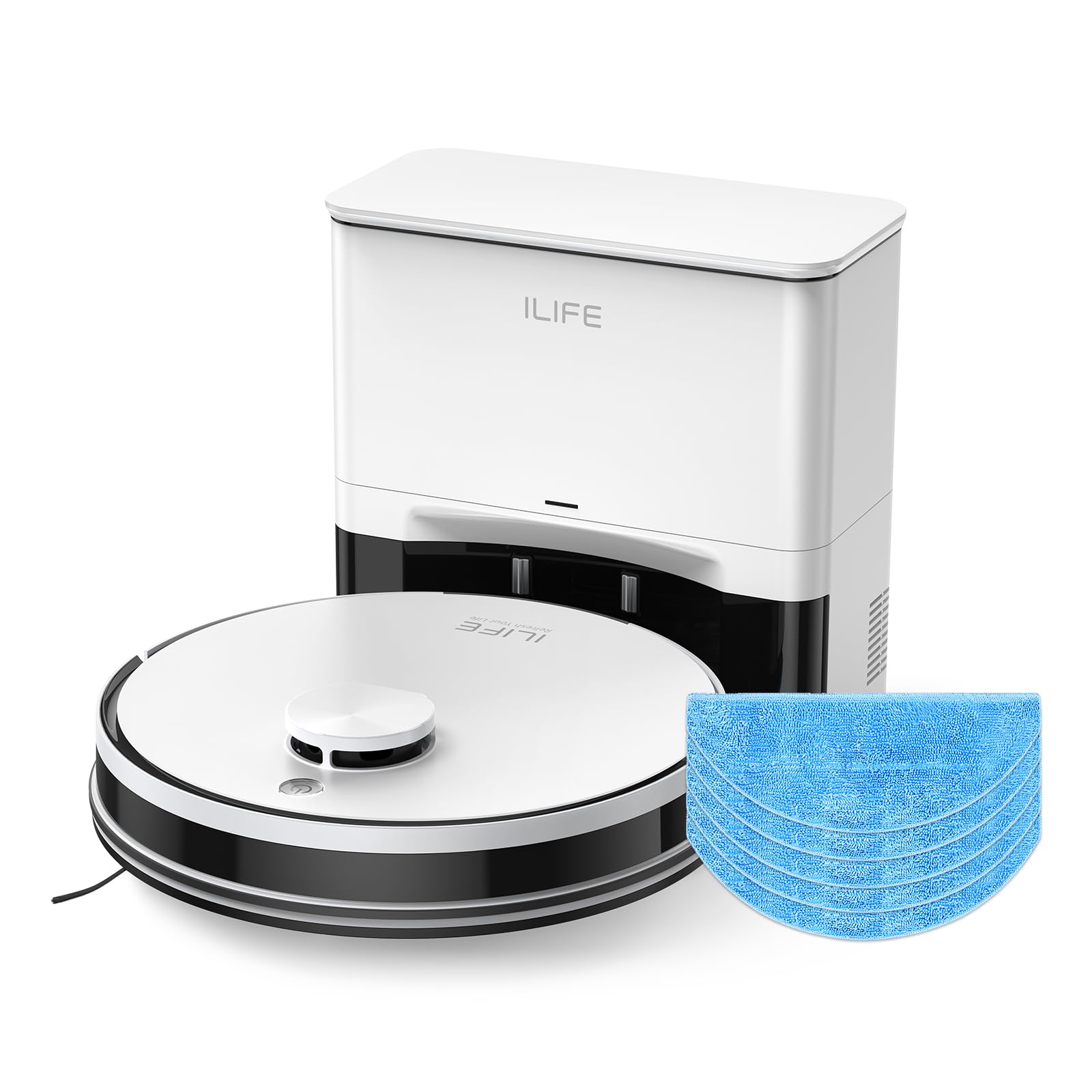
Figure 1: ILIFE A30 Pro Robot Vacuum and Mop Combo with its self-empty station, remote control, and a smartphone displaying the app interface.
1. Eto
1.1 Unboxing ati Ibi Ibẹrẹ
Carefully remove all components from the packaging. Ensure all accessories are present, including the robot vacuum, self-empty station, remote control, replacement mop cloths, and dust bags.
- Place the self-empty station against a wall in an open area, ensuring no obstacles are within 1 meter (3 feet) to the sides and 1.5 meters (5 feet) in front.
- Plug the self-empty station into a power outlet.
- Ensure the robot vacuum is placed on the charging contacts of the self-empty station to begin initial charging.
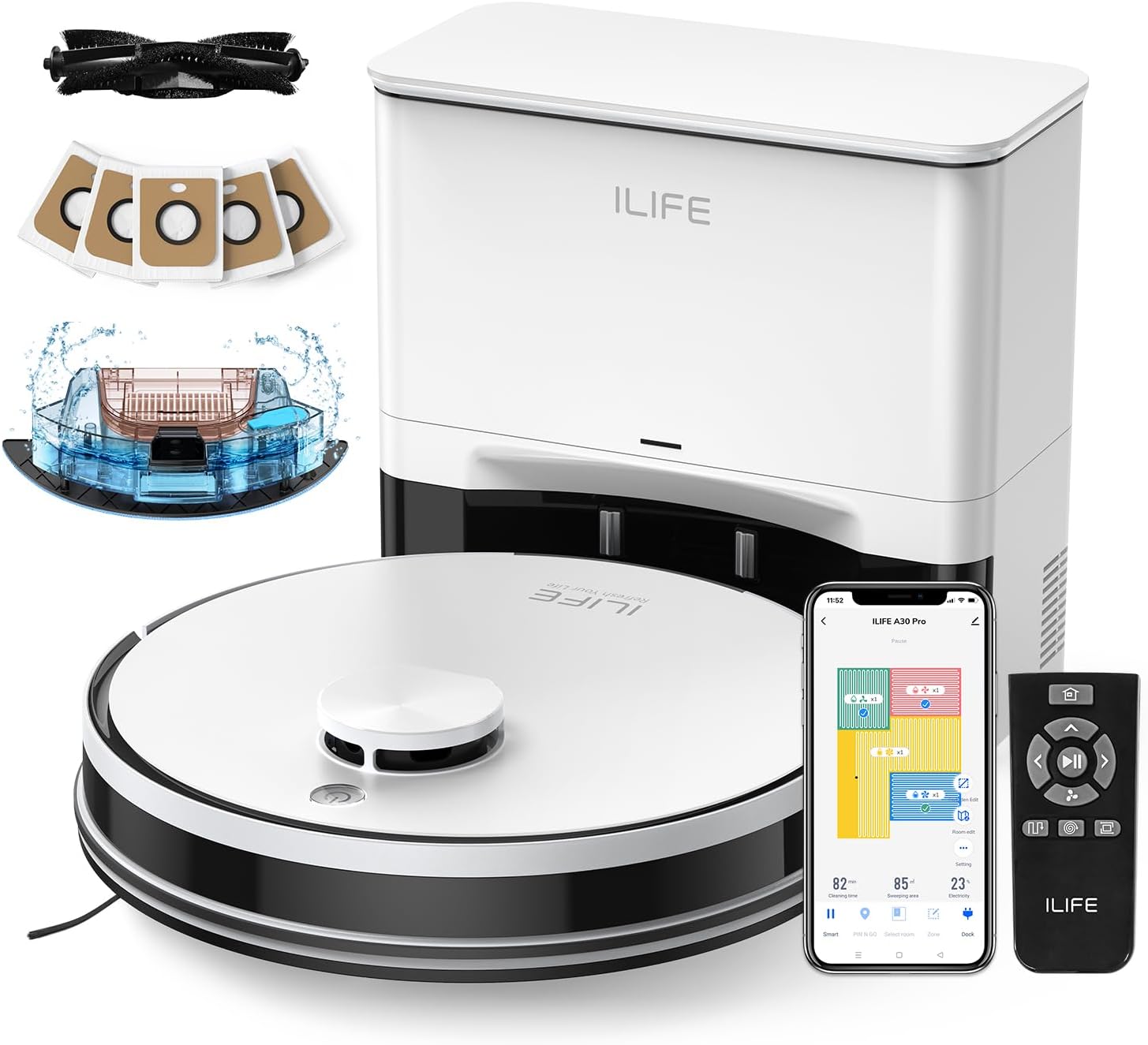
Figure 2: The ILIFE A30 Pro Robot Vacuum and Mop Combo with its various accessories, including replacement mop cloths and dust bags.
1.2 App Setup (ILIFEClean App)
- Download the "ILIFEClean" app from your smartphone's app store.
- Ṣii app naa ki o tẹle awọn ilana loju iboju lati ṣẹda akọọlẹ kan.
- Select "Add Device" within the app.
- Ensure your smartphone's Bluetooth is enabled and connected to a 2.4GHz WiFi network (5GHz networks are not supported).
- On the robot vacuum, press and hold the power button for approximately 5 seconds until the indicator light flashes, indicating pairing mode.
- Follow the remaining prompts in the app to connect your robot vacuum. The app will automatically map your home during the first cleaning cycle.

Figure 3: The ILIFEClean App provides comprehensive control over the robot vacuum, including no-go zones, room editing, zone cleaning, scheduling, suction levels, and water levels.
2. Ṣiṣẹ Robot Vacuum
2.1 Ipilẹ isẹ
- To start cleaning, press the power button on the robot vacuum once. The robot will automatically undock and begin cleaning.
- Láti dáwọ́ dúró tàbí láti dáwọ́ ìwẹ̀nùmọ́ dúró, tẹ bọ́tìnnì agbára náà lẹ́ẹ̀kan sí i.
- The robot is equipped with sensors to navigate around obstacles and clean corners effectively.

Figure 4: The robot vacuum utilizes LiDAR navigation for smart home mapping, path planning, and efficient cleaning.
2.2 Àwọn Ìgbékalẹ̀ àti Ìtòlẹ́sẹẹsẹ Ìmọ́tótó
The ILIFE A30 Pro offers Sweep, Vacuum, and Mop 3-in-1 functionality. You can adjust settings via the ILIFEClean app or the remote control.
- Awọn ọna mimu: Choose from Quiet (500Pa), Standard (1000Pa), Strong (1800Pa), and Max (5000Pa) depending on your cleaning needs.
- Awọn ipele omi: For mopping, select Low, Medium, or High water output.
- Awọn agbegbe mimọ: Use the app to set no-go zones, virtual walls, or select specific rooms/zones for cleaning.
- Carpet and Hard Floors: The robot seamlessly transitions between hard floors and carpets. For mopping, remove the mop holder when cleaning carpets.

Figure 5: The A30 Pro features a 2-in-1 integrated water tank for simultaneous vacuuming and mopping. The mop holder can be removed if mopping is not desired.
2.3 Iṣakoso Latọna jijin ati Iṣakoso Ohun elo
The robot vacuum can be controlled using the included remote or the ILIFEClean app.
- Isakoṣo latọna jijin: Use the remote to start/stop cleaning, change directions, adjust suction/water levels, and send the robot back to its charging station.
- Ohun elo Iṣakoso: The ILIFEClean app allows for advanced features such as setting cleaning schedules, managing maps, and integrating with voice assistants like Amazon Alexa and Google Home.

Figure 6: Control your ILIFE A30 Pro using the dedicated app, remote, or voice commands for a seamless cleaning experience.
3. Itọju
3.1 Self-Emptying Station and Dust Bags
The self-empty station automatically empties the robot's dustbin into a 2.5L capacity dust bag after each cleaning cycle. Each bag can hold dust and debris for up to 8 weeks, providing up to 280 days of hands-free cleaning with the included 5 bags.
- To replace a full dust bag, open the lid of the self-empty station and pull out the bag using its tab. Dispose of the full bag and insert a new one.

Figure 7: The self-empty station with 5x 2.5L dust bags offers extended hands-free cleaning for up to 280 days.
3.2 Mop Cloths and Water Tank
- To attach a mop cloth, align it with the mop holder and secure it.
- To fill the 200ml water tank, open the blue tab on the tank, fill with clean water, and close the tab securely. Do not add cleaning solutions to the water tank to avoid corrosion.
- Ensure the mop holder is properly attached to the robot for mopping functions.

Figure 8: A replacement mop cloth for the ILIFE A30 Pro.
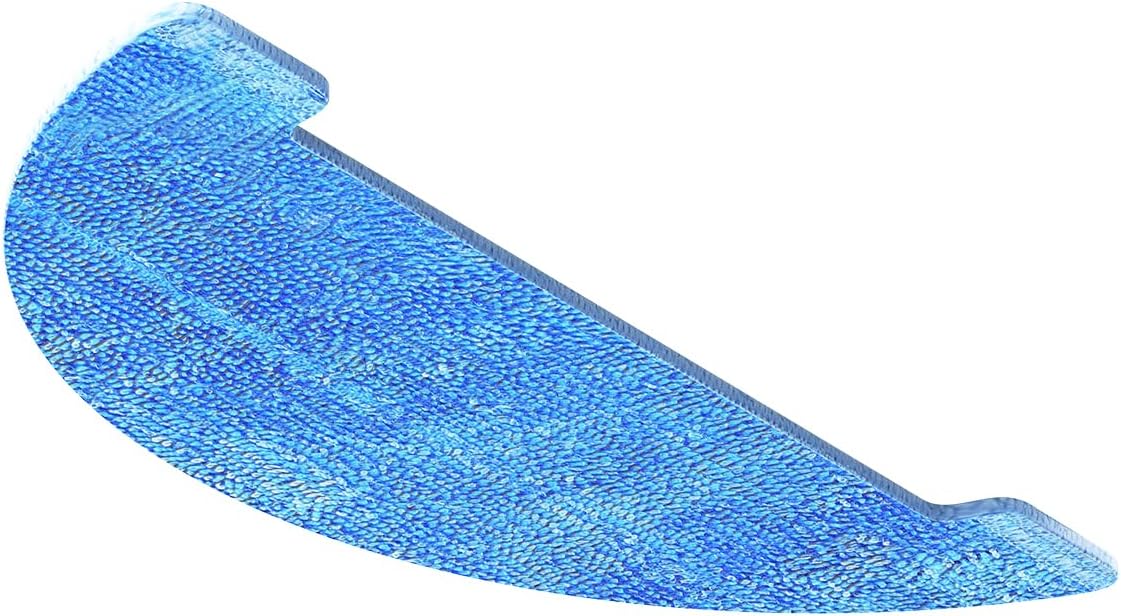
olusin 9: Apa view of the mop cloth, illustrating its design for effective floor cleaning.
4. Laasigbotitusita
If you encounter any issues with your ILIFE A30 Pro, please refer to the following common solutions:
- Robot ko bẹrẹ: Ensure the robot is fully charged and properly docked. Check if the power button is pressed correctly.
- Awọn oran Asopọmọra App: Verify your WiFi network is 2.4GHz. Ensure Bluetooth is enabled on your phone. Try restarting both the app and the robot.
- Robot n di: Use the app to define no-go zones around areas where the robot frequently gets stuck (e.g., loose cables, high thresholds). Clear any obstacles from the cleaning path.
- Iṣe mimọ ti ko dara: Check and clean the main brush, side brushes, and filters. Empty the dust bag if it's full. Ensure the water tank is filled for mopping.
- Mopping issues: Ensure the mop cloth is clean and properly attached. Verify the water tank is filled and the water level is set appropriately in the app.
5. Awọn pato
| Ẹya ara ẹrọ | Ẹ̀kúnrẹ́rẹ́ |
|---|---|
| Awoṣe | A30 Pro |
| ASIN | B0FSXKDGG5 |
| Agbara afamora | Up to 5000Pa (Max Mode) |
| Eruku Apo Agbara | 5 x 2.5L (up to 280 days hands-free) |
| Omi ojò Agbara | 200ml (integrated 2-in-1 with dustbin) |
| Awọn ọna mimọ | Sweep, Vacuum, Mop (3-in-1) |
| Lilọ kiri | LiDAR Navigation, Smart Home Mapping |
| App Iṣakoso | ILIFEClean App (2.4GHz WiFi only) |
| Ibamu Iranlọwọ ohun | Amazon Alexa, Google Home |
6. Atilẹyin ọja & Atilẹyin
For warranty information and customer support, please refer to the warranty card included in your product packaging or visit the official ILIFE website. You may also find additional support resources and FAQs within the ILIFEClean app settings.