

Iru Iru Flexbook Keyboard Afọwọṣe olumulo

Fun atilẹyin diẹ sii, jọwọ fi imeeli ranṣẹ si wa support@typecase.co
Awọn ibeere rẹ yoo dahun ni kiakia.
Pariview

Nsopọ
Isopọpọ akoko akọkọ:
-Igbese 1: Gbe ON/PA yipada si ON
-Igbese 2: Tẹ awọn 'Pẹpọ' bọtini fun 2 iṣẹju-aaya lati sopọ si iPad rẹ, (Atọka Bluetooth n tan)
-Igbese 3: Yi Bluetooth Tan-an ninu ohun elo Eto  lori iPad rẹ, (Atọka Bluetooth ku, o ti sopọ)

- Igbesẹ 4: Tẹ “Iru Flexbook” tabi “ Keyboard 360X” labẹ “ẸRỌ” ni apakan Bluetooth ninu ohun elo Eto.
Fun sisopọ ọjọ iwaju, jọwọ tun awọn igbesẹ 1-3 ṣe (ti o ba jẹ dandan). “Iru Flexbook” tabi “ Keyboard 360X” yoo han labẹ Awọn ẹrọ Mi. Fọwọ ba lati sopọ.

Fifi sori ẹrọ ati Yiyọ

- Yọ nkan aabo pada: mu iPad duro ni ẹgbẹ mejeeji ki o lo awọn atanpako lati rọra rọ ideri ẹhin naa (wo aworan.) Ideri waye ni aaye nipasẹ awọn taabu meji.
- Tẹsiwaju lati “bo” ideri kuro ni iPad.
- Mu iPad jade.
- Mu iPad jade si oke.
Awọn bọtini iṣẹ
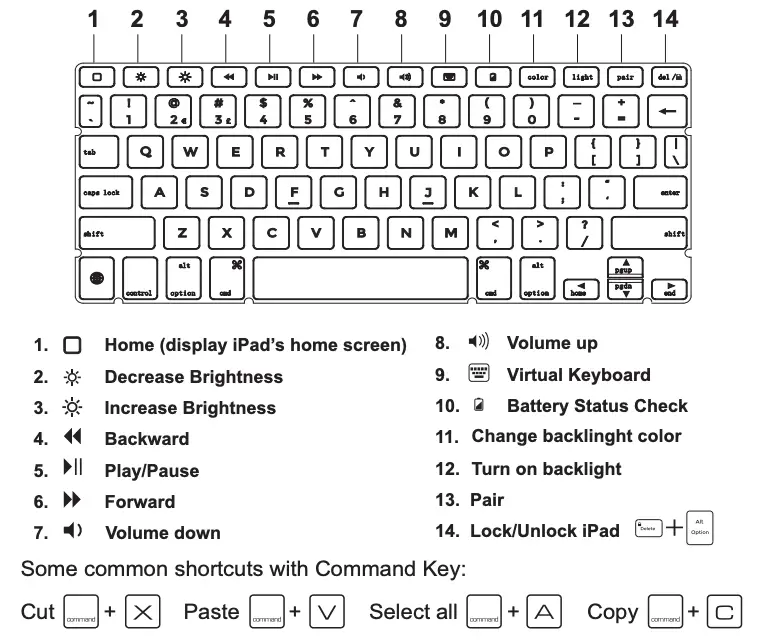
Awọn pato ọja
- Ijinna iṣẹ: Awọn mita 10 (ẹsẹ 33)
- Eto awose: GFSK
- Ṣiṣẹ voltage: 3.0-4.2V
- Ṣiṣẹ lọwọlọwọ: 0.88-3.85mA
- Isin oorun: <125μA
- Ngba agbara lọwọlọwọ: 500-800mA
- Akoko imurasilẹ: 30 ọjọ
- Tesiwaju ṣiṣẹ akoko lai backlight: 60 wakati.
- Akoko gbigba agbara: <2 wakati
- Agbara batiri: 500mAh
- Aye igbesi aye batiri: ọdun 3
- Igba aye bọtini: > 5 million o dake
- Iwọn otutu ti nṣiṣẹ: -10 ± 55 ° C
Itọju:
Jọwọ ṣetọju bọtini itẹwe labẹ iwọn otutu deede ati gbigba agbara labẹ vol deedetage.
Yiyi

Lilo

Gbigba agbara

Pe wa
Ti o ba ni awọn ọran tabi awọn ibeere, jẹ ki a mọ ASAP! A yoo nifẹ lati gba ọ ni abojuto ati idunnu lẹsẹkẹsẹ! Gbogbo awọn ẹya wa pẹlu atilẹyin ọja oṣu 12 ni kikun, nitorinaa o le sinmi ati gba itunu ninu rira rẹ. Fun atilẹyin ti o yara julọ & ore julọ, kan si wa (kii ṣe Amazon) nipasẹ ọkan ninu awọn ọna olubasọrọ ni isalẹ. Atilẹyin imeeli wa ṣii 24/7/365.
- Imeeli: support@typecase.co
- Foonu: 832-303-5080
- Ọna asopọ atilẹyin: https://ipadkeyboards.com
Laasigbotitusita
Ti keyboard ko ba ṣiṣẹ daradara, jọwọ ṣayẹwo atẹle naa:
- Iṣẹ Bluetooth lori iPad (tabi awọn ẹrọ Bluetooth miiran) ti muu ṣiṣẹ.
- Bọtini itẹwe Bluetooth wa laarin awọn ẹsẹ 33.
- Bọtini Bluetooth ti gba agbara.
Ti o ba ni atunse adaṣe aifẹ tabi aami ifamisi, jọwọ gbiyanju lati yi eto itẹwe alailowaya lori iPad rẹ: - So iPad rẹ pọ mọ keyboard Alailowaya.
- Lọ si iPad Eto app> Gbogbogbo> Keyboard> Keyboard Hardware.
- Yipada PAA Ipilẹṣẹ Aifọwọyi, Atunse Aifọwọyi, ati “.” Ọna abuja. (jọwọ tọka si nọmba ti o wa ni isalẹ)

- Rii daju pe bọtini itẹwe wa ni titan (itọka batiri ti tan ina).
- Rii daju pe batiri naa ni agbara to
- Rii daju pe Bluetooth ninu ẹrọ rẹ (fun apẹẹrẹ iPad, pc tabili) wa ni titan
- Tẹ bọtini 'Pair', ṣayẹwo ipo Bluetooth.
- Rii daju pe keyboard ti so pọ nipasẹ Bluetooth.
Ti o ba kuna ni asopọ pẹlu Bluetooth, jọwọ gbiyanju awọn igbesẹ wọnyi:- Pa ẹrọ Bluetooth rẹ lori iPad,
- Yipada si pa awọn Bluetooth iṣẹ lori iPad
- Atunbere iPad
- Yipada lori Bluetooth lori iPad
- Yi keyboard si pa ati tan
- Tun igbesẹ naa tun ni oju-iwe 2 ati 3 lati pa keyboard pọ
Awọn iwe aṣẹ / Awọn orisun
 | Flexbook Keyboard Case |
Awọn itọkasi
- Ileipadkeyboards.com
- Itọsọna olumulomanual.tools
Eyin Arabinrin ati Ololufe,
Bii o ṣe le lo awọn ami ibeere ati awọn ohun kikọ pataki miiran.
Pẹlupẹlu, y ati z ti wa ni paarọ lori keyboard mi. Ti MO ba tẹ z, lẹta Y yoo han. Ati idakeji.
Kini o yẹ ki n ṣe.
Ikini
Carmen Thieme
Sehr geehrte Damen ati Herren,
Wie sind Fragezeichen und andere Sonderzeichen anzuwenden.
Desweiteren ist bei meiner Tastatur y und z vertauscht, Drücke ich z erscheint der Buchstabe Y. Und umgekehrt.
Je soll ich machen.
Gruss
Carmen Thieme
Bii o ṣe le lo awọn ami ibeere ati awọn ohun kikọ pataki miiran.
Pẹlupẹlu, y ati z ti wa ni paarọ lori keyboard mi. Ti MO ba tẹ z, lẹta Y yoo han. Ati idakeji.
Kini o yẹ ki n ṣe.
Ikini
Carmen Thieme</em>
Sehr geehrte Damen ati Herren,
Wie sind Fragezeichen und andere Sonderzeichen anzuwenden.
Desweiteren ist bei meiner Tastatur y und z vertauscht, Drücke ich z erscheint der Buchstabe Y. Und umgekehrt.
Je soll ich machen.
Gruss
Carmen Thieme
How do I use special characters and fix the issue where the Y and Z keys are swapped?
The issue where the Y ati Z keys are swapped (and special characters are not where they appear on the keys) is caused by the iPad's software keyboard layout being set to a different language than the physical keyboard hardware.
To fix this, please follow these steps on your iPad:
For further assistance with specific shortcuts, you can refer to the Awọn bọtini iṣẹ section in your manual or contact Typecase support at support@typecase.co.
Read the full Q&A page
Eyi le tabi ko ṣiṣẹ, o kan wa lairotẹlẹ nigba wiwa nkan miiran. Gbiyanju lati lọ si SETTINGS, lẹhinna GENERAL, lẹhinna KEYBOARDS, lẹhinna ENGLISH, lẹhinna yan iru keyboard. Oriṣiriṣi mẹta lo wa fun mi, QWERTY (yan eyi), AZERTY, ATI QWERTZ. O dabi eyi, ti ko ba yan ni deede, o le yi awọn bọtini Y ati Z rẹ pada. Ko daju, Mo wa a newbie ni yi, sugbon o tọ kan gbiyanju.
How do I fix the keyboard layout if the Y and Z keys are swapped on my Typecase Flexbook?
Ti o ba ti rẹ Y ati Z keys are swapped, it is likely because your iPad is set to a different keyboard layout (such as AZERTY or QWERTZ) instead of the standard QWERTY layout used by the Typecase Flexbook.
To fix this, follow these steps on your iPad:
Additionally, the manual suggests that for other typing issues, you can navigate to Settings > General > Keyboard > Hardware Keyboard to toggle settings like Auto-Capitalization and Auto-Correction.
Read the full Q&A page
Awọn lẹta nikan ti o wa lori laini alfabeti oke ti o ṣiṣẹ fun mi ni “T” ati “Y”. Gbogbo awọn lẹta miiran ati awọn ohun kikọ pataki ṣiṣẹ lori iyoku keyboard. Ṣe atunṣe wa fun eyi?
Why are only the 'T' and 'Y' keys working on the top row of my Typecase Flexbook keyboard?
If specific keys like the top alphabet row (except 'T' and 'Y') are not responding while others work, it often indicates a hardware connection issue or a software glitch. Please try the following troubleshooting steps from the manual:
If the issue persists after a full reset and charge, it is likely a hardware defect. Since the product comes with a 12-month warranty, you should contact Typecase support at support@typecase.co tabi ipe 832-303-5080 fun aropo.
分析>
Read the full Q&A page
Ti o dara aṣalẹ, Mo ni yi gangan oro. Ṣe o ni anfani lati yanju?
Bakanna nibi. Ẹnikẹni ro ero yi jade?
Mo ni iṣoro kanna. Ẹnikẹni ro ero yi jade?
Mo tun ni iṣoro yii. G, h ati ọpa aaye ko ṣiṣẹ. Mo gbiyanju iyipada si AMẸRIKA dipo aifọwọyi AMẸRIKA ati pipa fila adaṣe, atunṣe adaṣe ati awọn ọna abuja ṣugbọn wọn ko tun ṣiṣẹ. Ti ra bọtini itẹwe ni Oṣu Kẹwa ọdun 2021 ati pe ko lo.
I am also having the same Problem, more than half the keys don’t work. Did any one figure it out?
Bọtini itẹwe mi n tan ina pupa nigbati o ba ṣafọ sinu, ṣugbọn ko wa ni titan nigbati mo ba yipada bọtini titan/pa. Ko ṣiṣẹ rara. Mo ro pe batiri naa wa ṣugbọn boya nkan miiran wa ti o le ṣee ṣe lati le ṣatunṣe iṣoro yẹn. O ṣeun.
Why is my Typecase Flexbook keyboard not turning on even though the red light is on when plugged in?
Based on the Typecase Flexbook User Manual, if your keyboard shows a red light while charging but does not turn on when toggled, please try the following troubleshooting steps:
Read the full Q&A page
Àmì Àmì ÀmìNÚN ÀWỌN KỌ́KỌ́RỌ̀ NÍNÚ MÁJỌ́ Ó dàbí ẹni pé KÍBOARDÌ YÌÍ YÌN ÀWỌN ÀWỌN ÀWỌN ẸMẸ̀LẸ̀ 1 TABI 2
Why do the symbols on my Typecase Flexbook keyboard not match the keys being pressed?
If your Typecase Flexbook keyboard symbols do not match the keys being pressed, it is usually due to the iPad's software keyboard settings being set to a different language or layout than the physical keyboard.
To resolve this, please check your iPad settings:
Additionally, the manual suggests checking for unwanted auto-correction settings that might interfere with typing:
If the issue persists, try unpairing and re-pairing the device: delete the Bluetooth device from your iPad settings, reboot your iPad, and follow the pairing steps on page 2 of the manual.
Read the full Q&A page
As I change the keyboard cursor, touch
Como cambio el cursor del teclado, touch
Como cambio el cursor del teclado, touch
How do I change the keyboard cursor or touch settings?
The Typecase Flexbook Keyboard Case manual does not provide specific instructions for changing the appearance of the cursor, as cursor behavior is controlled by the iPadOS software rather than the keyboard itself. However, you can adjust these settings on your iPad by following these steps:
If you are experiencing issues with typing behavior (such as unwanted auto-corrections), the manual suggests going to Eto > Gbogboogbo > Keyboard > Keyboard Ohun elo to toggle settings like Auto-Capitalization and Auto-Correction.
Read the full Q&A page
Pẹlẹ o
Mo ṣẹṣẹ gba bọtini itẹwe ipad tuntun mi ati pe Emi ko le rii itọnisọna itọnisọna PDF ni Faranse. Jọwọ ṣe o le pese fun mi. ?
Bonjour
Je viens de recevoir mon nouveau clavier ipad ati je ne trouve pas le manuel d'itọnisọna kika PDF ati Français. Pouvez-vous mi le fournir svp. ?
I have just received my new ipad keyboard and I cannot find the PDF instruction manual in French. Can you provide it to me please. ?<e/em>
Bonjour
Je viens de recevoir mon nouveau clavier ipad et je ne trouve pas le manuel d'instructions format PDF en Français. Pouvez-vous me le fournir svp. ?
Where can I find the French PDF instruction manual for the Typecase Flexbook Keyboard Case?
Currently, the official manual provided for the Iru Flexbook Keyboard Case is only available in English. Typecase does not typically provide a separate French PDF on their standard support channels.
However, you can follow these steps to set up your keyboard, as the process is straightforward:
If you need specific instructions translated, you may also use a mobile translation app to scan the English manual text.
Vous pouvez contacter le support technique à support@typecase.co pour demander une version française.
O le view the English manual online here: Typecase Flexbook Keyboard Case Manual.
Note: Uncertainty exists regarding the availability of an official French PDF as it is not hosted on the primary support site.
Read the full Q&A page
Is there a manual, tips for using the ” Typecase ” flexboard keyboard
Est-ce qu’il y a un manuel, astuces d’utilisation du clavier ”Typecase” flexboard
Est-ce qu'il y a un manuel, astuces d'utilisation du clavier ''Typecase'' flexboard
Where can I find the manual and usage tips for the Typecase Flexbook Keyboard Case?
You can find the manual and usage tips for the Iru Flexbook Keyboard Case ni isalẹ:
For further assistance, you can contact Typecase support at support@typecase.co tabi ipe 832-303-5080.
Read the full Q&A page
Backspace , paarẹ ati yiyi bọtini ko ṣiṣẹ. Ma se nkankan. Laipe fi sori ẹrọ os15.4.1
Why are the backspace, delete, and shift keys not working on my Typecase Flexbook after updating to iPadOS 15.4.1?
If specific keys like Backspace and Shift stop working after an iPadOS update, it is often related to software settings or a connection glitch rather than a hardware failure. Please try the following troubleshooting steps based on the Typecase Flexbook manual:
Note: If the keys still do not respond after a full reset and re-pairing, there may be a hardware defect that coincided with the update.
>
Read the full Q&A page
GOOD MORNING: MY KEYBOARD IS ACTING UP: WRITES CAPITAL LETTERS EVEN THOUGH I HAVE NOT CHOSEN TO WHEN USING KEYBOARD VIA BLUETOOTH: HAVE TRIED THE RECOMMENDATION YOU GIVE; BUT it ONLY WORKS FOR A FEW WORDS AND THEN GOES BACK TO MALFUNCTIONING: AS YOU CAN SEE IT SEEMS TO HAVE A MIND OF ITS Own:::
How do I stop my Typecase Flexbook keyboard from automatically typing in capital letters?
If your Typecase Flexbook keyboard is automatically typing in capital letters even after trying basic fixes, the issue is likely related to the iPad's software settings for external keyboards. Please follow these specific steps to disable the auto-capitalization feature:
If the problem persists after changing these settings, it may indicate a hardware fault with the Shift key. You can contact Typecase support directly at support@typecase.co tabi ipe 832-303-5080 for further assistance under your 12-month warranty.
Read the full Q&A page
Could you please tell me how to turn the touchpad off on the Typecase for IPad Pro? Many thanks
How do I turn off the touchpad on the Typecase for iPad Pro?
The provided manual for the Typecase Flexbook Keyboard Case does not contain specific instructions on how to turn off the touchpad. It primarily focuses on connecting the keyboard, troubleshooting connection issues, and adjusting iPad settings related to auto-capitalization, auto-correction, and shortcuts. There is no mention of a dedicated function key or setting to disable the touchpad.
Read the full Q&A page
Emoji Key now comes out as a capital A .
how do I get my emojis back ?
how do I get my emojis back ?
Why does the emoji key on my Typecase Flexbook keyboard type a capital A instead of opening emojis?
This issue is often caused by the iPad's software settings or a mismatch in the keyboard layout configuration. To restore your emoji functionality, please try the following steps:
If the key continues to output a capital 'A', it may be a hardware defect. You can contact Typecase support directly at support@typecase.co tabi ipe 832-303-5080 fun iranlọwọ atilẹyin ọja.
Read the full Q&A page
Hello, my keyboard just work if I use the up and down keys. The pad doesn’t work at all, I meant is this normal?
Why is my keyboard only working with the up and down keys while the trackpad does not work at all?
It is not normal for the trackpad (pad) to be unresponsive while only specific keys work. This often indicates a connection or settings issue. Please try the following troubleshooting steps based on the manual:
Note: If only the up/down keys work, ensure you are not in a specific mode or app that limits input functionality.
Read the full Q&A page